
Extreme Tux Racer VR
Race Tux the penguin down icy slopes, in true stereo, on Meta Quest and PICO.
About
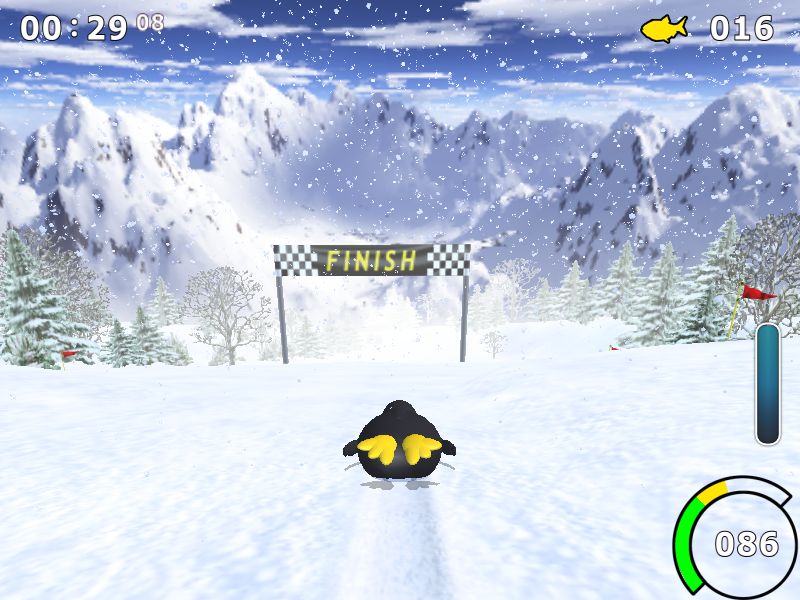
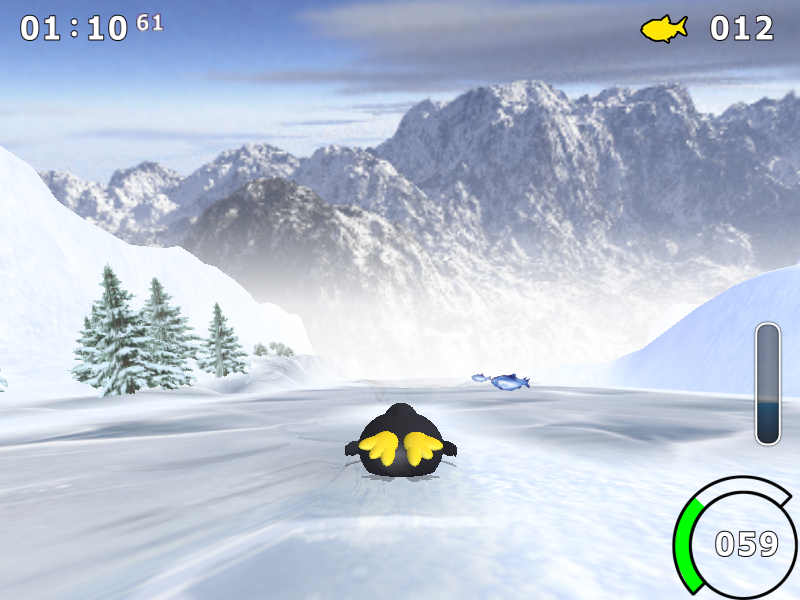
Extreme Tux Racer running standalone on Meta Quest and PICO (4, 4 Ultra, Neo 3) in true stereo at 72 Hz. Race down the slopes, grab herrings along the way, and pull off tricks in the air.
PICO support is brand new and not tested on PICO hardware yet: reports are very welcome. Each release has one APK per make: extremetuxracer-quest.apk for Meta Quest, extremetuxracer-pico.apk for PICO.
Features
- Native OpenXR app: each race is simulated once per frame and rendered once per eye
- Menus on a floating screen, driven with the thumbstick
- Game data unpacked on first launch
Manual
Installation
- Enable developer mode on your headset.
- Download the APK for your headset below:
extremetuxracer-quest.apkfor Meta Quest,extremetuxracer-pico.apkfor PICO. - Sideload it with SideQuest or
adb install -r <file>.apk. SideQuest is a Quest tool, so on PICO use adb or whichever sideloader you already use. - Launch it from Library → Unknown Sources on Quest, or from your library on PICO.
Good to know
- PICO needs PICO OS 5.9.0 or newer: only from that version does the PICO runtime work with the generic Khronos OpenXR loader the port uses.
- The PICO build is untested: if it does not start, or the controllers do nothing, please open an issue on GitHub.
Controller mapping
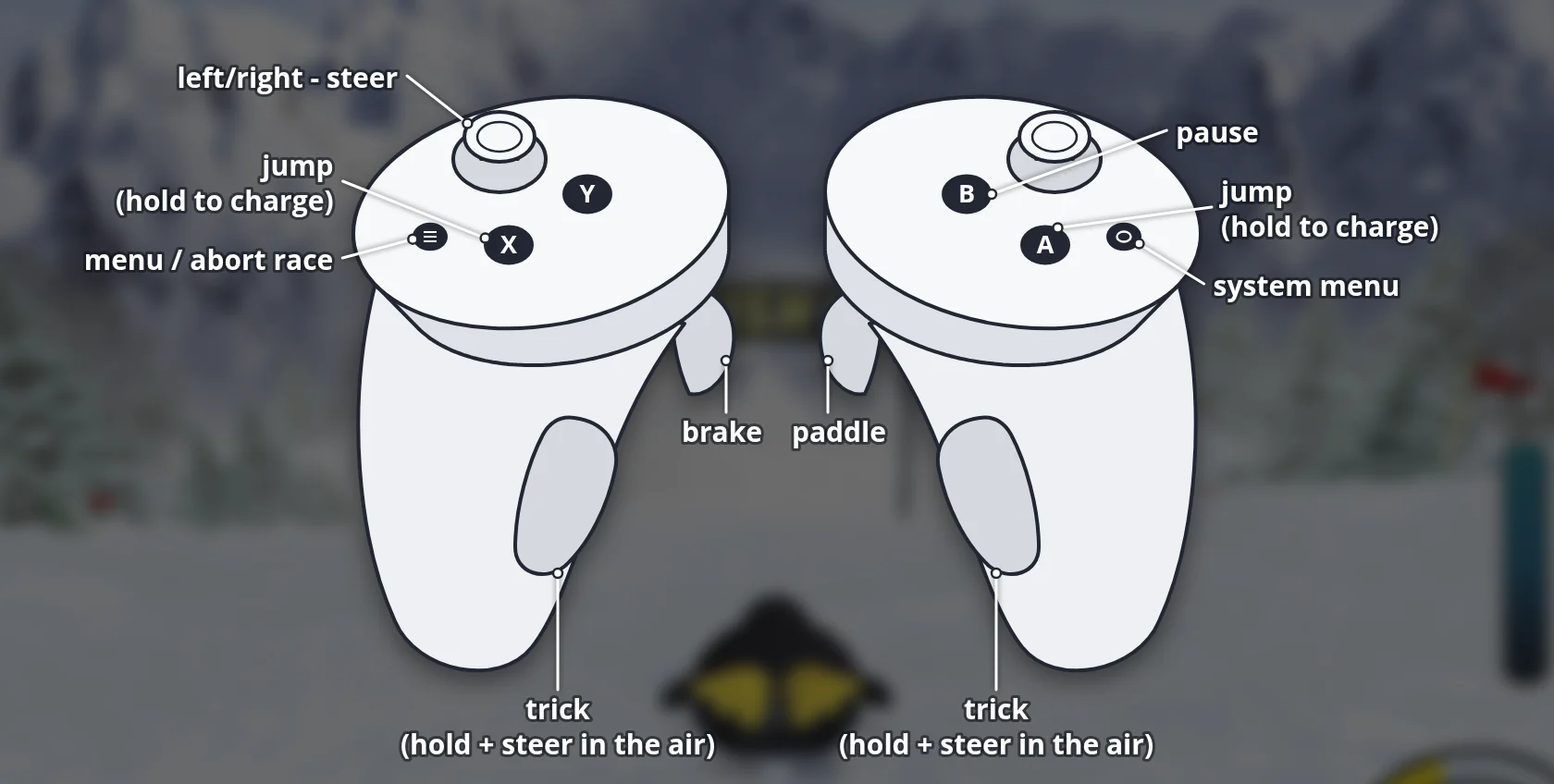
| Input | Action |
|---|---|
| Left stick | Steer (menus: navigate) |
| Right trigger | Paddle |
| Left trigger | Brake |
| A / X | Jump |
| Grips | Trick |
| B | Pause |
| Left menu button | Menu |
Button names are those of the Meta Quest controllers; PICO controllers use the same layout.
Download
Install from your browser
One click over USB, for Meta Quest and PICO: no SideQuest needed. USB install works in Chrome or Edge on a PC, Mac or Android phone. No PC? Open this page in the Meta Quest Browser on your headset and install it right there.
The installer needs JavaScript. Use the manual download below.
First time? Before you start
- Turn on developer mode. Quest: Meta Horizon app on your phone → Devices → your headset → Headset settings → Developer mode. PICO: Settings → General → About → tap Software version 7 times, then Settings → Developer → turn on USB debugging.
- Connect the headset to this computer with a USB cable that carries data (not a charge-only cable).
- Close SideQuest and Meta Quest Developer Hub. If you use adb, run
adb kill-serverfirst: only one program can talk to the headset at a time. - Windows: if the headset doesn't show up in the list, install the Meta Quest ADB driver.
- After pressing Connect, put on the headset and allow USB debugging for this computer.
ExtremeTuxRacer VR 0.0.2 – Quest & Pico (beta) latestTuxracer0.0.2 · 23 Sep 2026
All releases: github.com/SgtBilko76/ExtremeTuxRacer-VR/releases
Need help or found a bug? Ask in #support on our Discord, and get new releases in #new-releases.
Join the DiscordPictures & video
Credits: Based on Extreme Tux Racer.