
OpenXW VR
Star Wars: X-Wing from inside a 3D cockpit, standalone on Meta Quest and PICO.
About
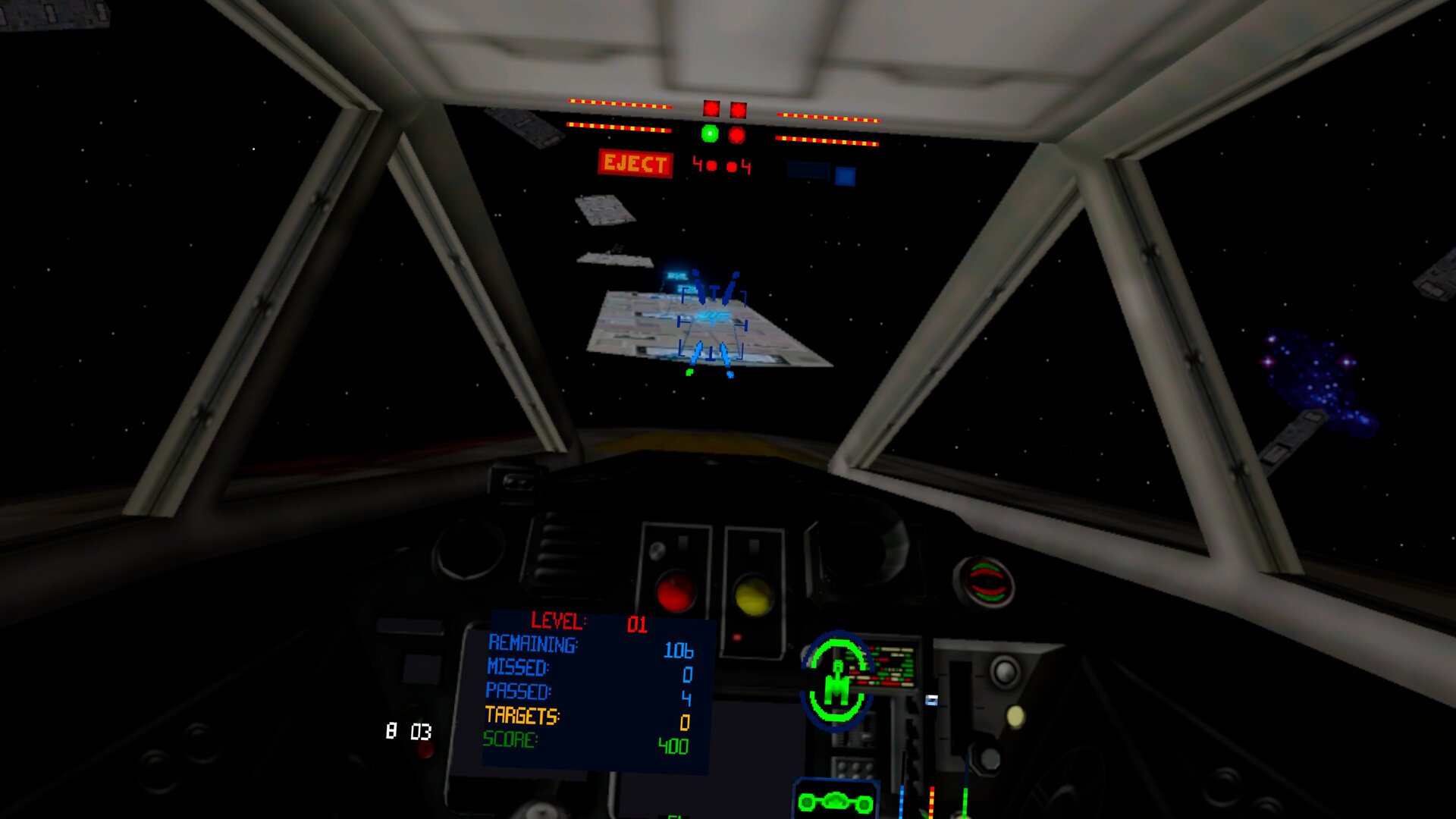
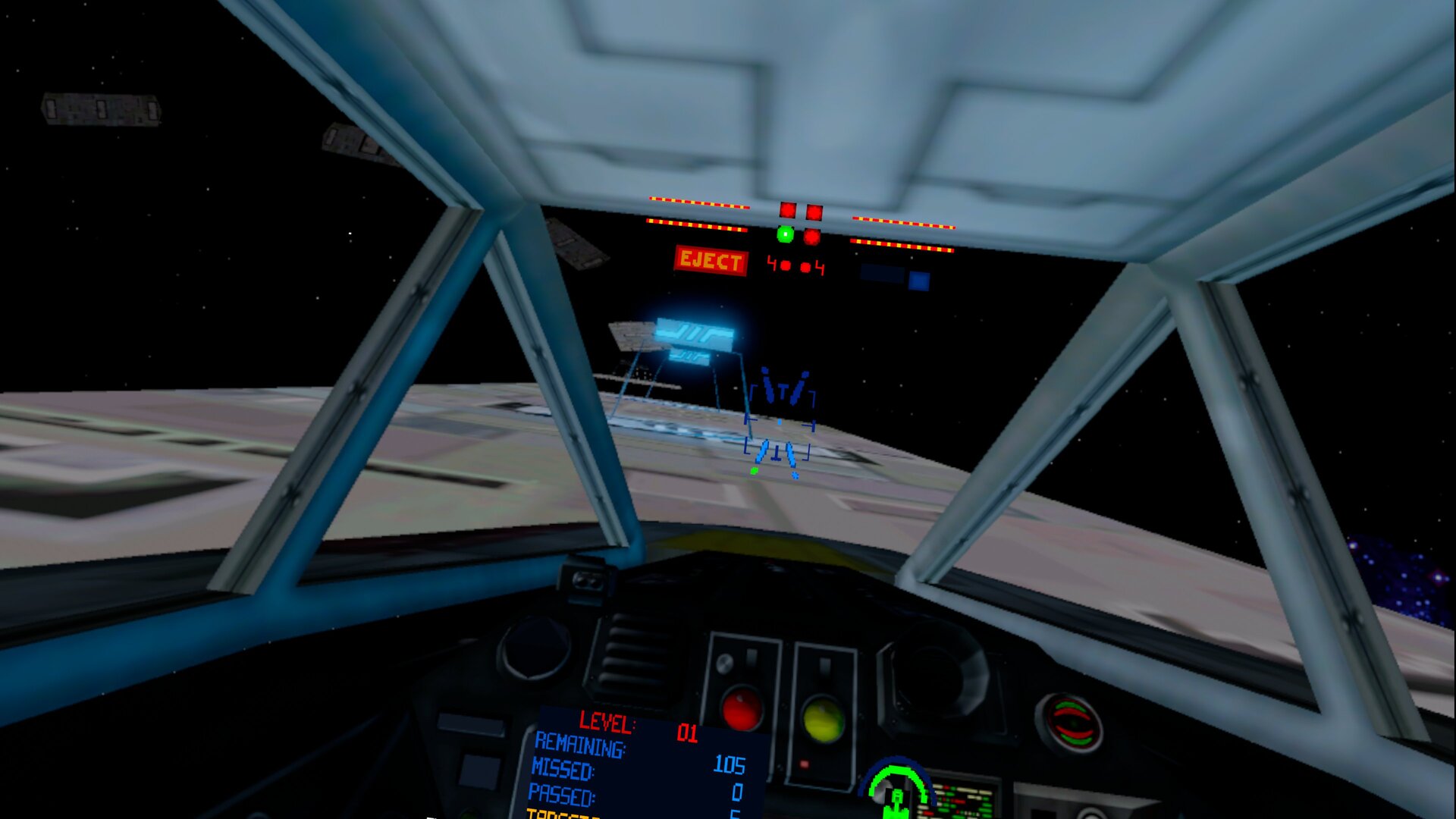
A VR port of OpenXW, the open source rebuild of Star Wars: X-Wing, running standalone. Space is rendered in stereo around you and you sit in a 3D cockpit of your X-Wing, Y-Wing, A-Wing or B-Wing, with the original instruments and HUD in front of you. The concourse, briefings and cutscenes play on a big virtual screen.
Features
- Head-tracked stereo 3D space in flight (1998 flight engine)
- 3D cockpits from X-Wing Revival for the X-Wing, Y-Wing, A-Wing and B-Wing (included)
- The original instruments and HUD in front of you
- Full flight control on the controllers, remappable in Settings → Controller
- Hold the right grip to look behind you
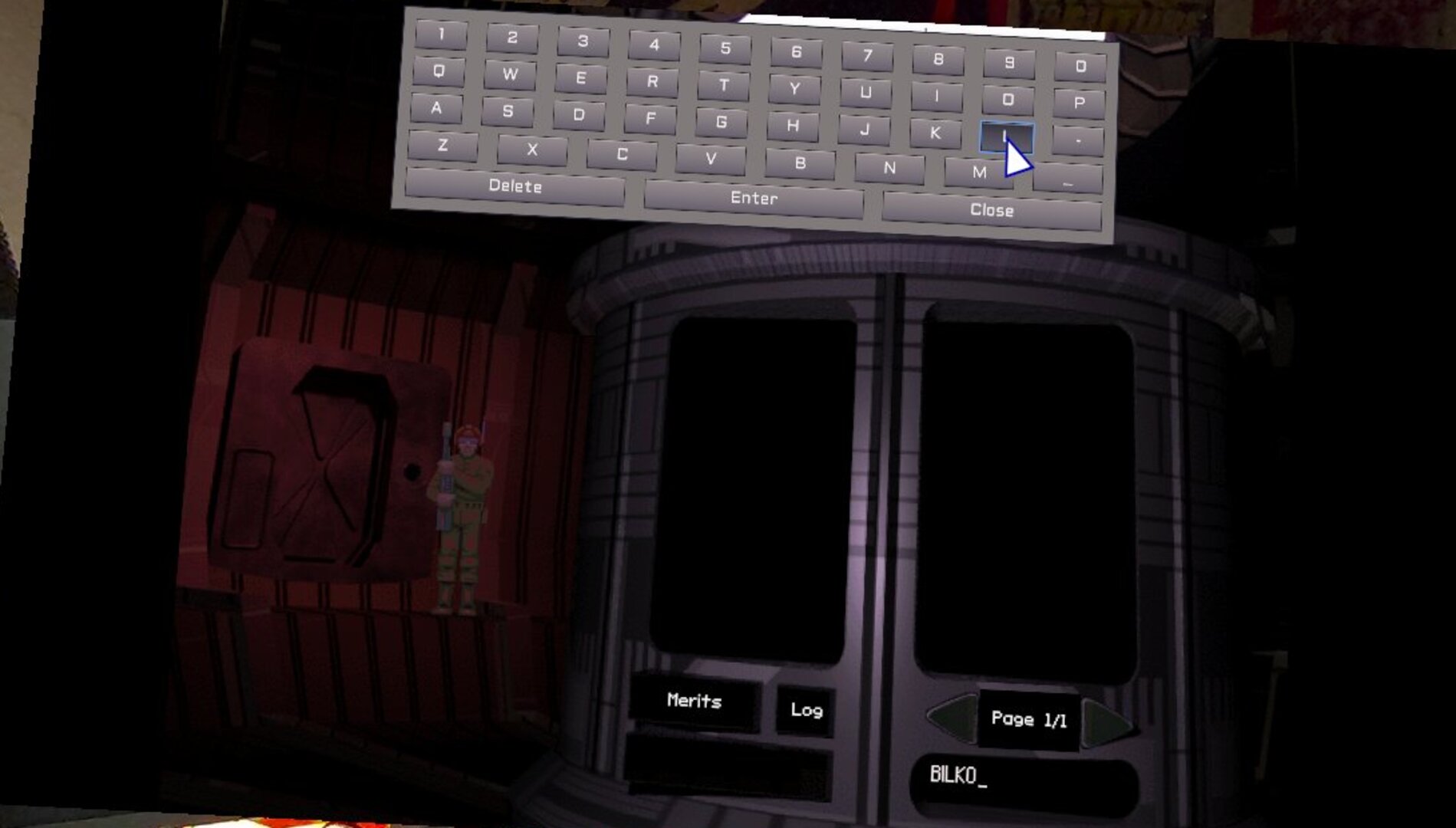
- Laser pointer for the menus; click the pilot name field and an on-screen keyboard opens
- Menus over passthrough on Meta Quest
Manual
Installation
- Sideload the APK with SideQuest or
adb install -r OpenXW-VR-v0.1.2-beta.apk. - From the Steam folder
STAR WARS X-Wing, copycollectors_cdto/sdcard/OpenXW/XW94andremasteredto/sdcard/OpenXW/XW98on the headset. - Start OpenXW VR from Unknown Sources and allow "access to all files" when asked.
Good to know
- The APK contains no game data: you need your own copy of the game.
- The small screens built into the X-Wing Revival cockpits are dark; the original instruments stay in front of you instead.
- Passthrough behind the menus works on Meta Quest only; on PICO the menus float in front of black.
- PICO needs PICO OS 5.9.0 or newer: only from that version does the PICO runtime work with the generic Khronos OpenXR loader the port uses.
- The PICO build is untested: if it does not start, or the controllers do nothing, please open an issue on GitHub.
adb logcat -s SDL/APP:*shows how far it gets, which is the useful thing to paste in.
Controller mapping
| Input | Flight | Menus |
|---|---|---|
| Left stick | Pitch and yaw | Arrow keys |
| Right stick | Roll (left/right), throttle lever (up/down) | |
| Right trigger | Fire | Click |
| Left trigger | Target / roll modifier | Click |
| Right grip | Rear view (hold) | Right-click |
| A / B | Next target / nearest fighter | Enter / Escape |
| X / Y | Target my attacker / match target speed | Y = Space |
| Left / right stick click | Forward view / hyperspace | |
| Left Menu button | Pause (hold 1 s: recenter) | Escape (hold 1 s: recenter) |
| Left grip + A / B | Full throttle / throttle down | |
| Left grip + X / Y | Clear target / Escape | |
| Left grip + left trigger | Cycle firing mode | |
| Left grip + left / right stick click | Cycle weapon group / cycle shields |
Button names are those of the Meta Quest controllers; PICO controllers use the same layout.
Download
Install from your browser
Over USB, for Meta Quest and PICO: installs the app and copies your own game files to the right place. No SideQuest, no adb. Works in Chrome or Edge on a PC, Mac or Android phone.
The installer needs JavaScript. Use the manual download below.
First time? Before you start
- Turn on developer mode. Quest: Meta Horizon app on your phone → Devices → your headset → Headset settings → Developer mode. PICO: Settings → General → About → tap Software version 7 times, then Settings → Developer → turn on USB debugging.
- Connect the headset to this computer with a USB cable that carries data (not a charge-only cable).
- Close SideQuest and Meta Quest Developer Hub. If you use adb, run
adb kill-serverfirst: only one program can talk to the headset at a time. - Windows: if the headset doesn't show up in the list, install the Meta Quest ADB driver.
- After pressing Connect, put on the headset and allow USB debugging for this computer.
OpenXW VR v0.1.2-beta (Meta Quest + PICO) latestv0.1.2-beta · 20 Oct 2026
All releases: github.com/SgtBilko76/OpenXW-VR/releases
Need help or found a bug? Ask in #support on our Discord, and get new releases in #new-releases.
Join the DiscordPictures & video
Credits: Based on OpenXW and the Aeron engine by elyosh. 3D cockpit models: X-Wing Revival by Raptor007 and contributors (originally from the X-Wing Alliance Upgrade project). Pictures: captured on a Meta Quest 3.