

Xonotic VR
The fast-paced open-source arena shooter, standalone on Meta Quest and PICO.
About
A native OpenXR port of Xonotic 0.8.6 for Meta Quest and PICO. The same APK works on both headsets, the right controller bindings and OpenXR extensions are picked automatically at startup. The APK is self-contained: the full game data is bundled, no extra download needed.
Online play uses the game's own server browser and the standard Xonotic 0.8.6 data; offline matches against bots work too.
Features
- Single-pass stereo rendering (multiview) and GPU skeletal skinning
- Fixed foveated rendering: 70-72 fps on Quest 3
- Controller-attached weapons with the game's own crosshair along the aim
- Sniper zoom and haptics
- VR text input in menus and chat
- Comfort turning; the head-tracked camera is kept out of walls
Manual
Installation
- Enable developer mode on your Quest.
- Download the APK below.
- Sideload it with SideQuest or
adb install -r <file>.apk. - Launch it from Library → Unknown Sources.
Good to know
- Settings live in
/sdcard/XonoticVR/data/vr.cfg. A release that ships new VR defaults rewrites that file, so keep personal settings in a file of your own and add+exec myconfig.cfgtocommandline.txt, which is never overwritten. - More framerate: raise
vr_foveation(0-3) or lowervr_supersampling. Quest Games Optimizer's resolution setting has no effect - the port clamps the eye buffer to the panel baseline on purpose,vr_supersamplingis the knob. - If the sky or background shows through walls,
vr_novis 1draws the whole level as a workaround (at a framerate cost), and an issue with the map name is welcome. - A weapon that looks washed out: lower
r_reflectcube_neutral(0disables the reflection entirely), raise it toward1if weapons look flat. - The APK is signed with a debug key.
- The PICO build is untested: if it does not start, or the buttons are mapped differently, please open an issue on GitHub.
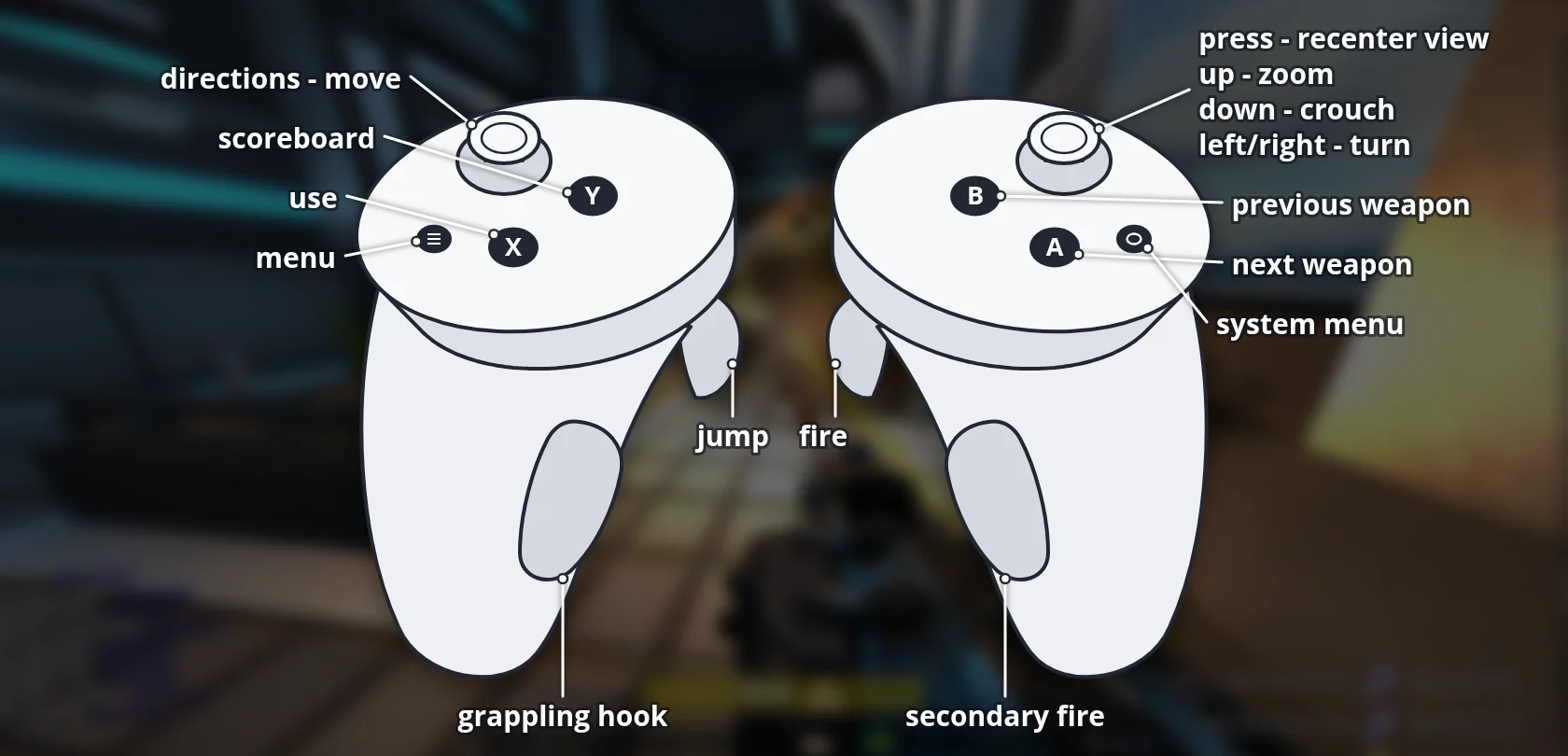
Controller mapping
| Input | Action |
|---|---|
| Right trigger | Fire |
| Right grip | Secondary fire |
| Right stick up | Zoom |
| Right stick down | Crouch |
| Left trigger | Jump |
| Left grip | Grappling hook |
| Left stick | Move |
| A / B | Next / previous weapon |
| X | Use |
| Y | Scoreboard |
| Right stick click | Recenter view |
| Left menu button | Menu |
Button names are those of the Meta Quest controllers, PICO controllers use the same layout. The weapon points where the aiming hand points. Set cl_righthanded 0 to aim with the left hand.
Download
Install from your browser
One click over USB, for Meta Quest and PICO: no SideQuest needed. USB install works in Chrome or Edge on a PC, Mac or Android phone. No PC? Open this page in the Meta Quest Browser on your headset and install it right there.
The installer needs JavaScript. Use the manual download below.
First time? Before you start
- Turn on developer mode. Quest: Meta Horizon app on your phone → Devices → your headset → Headset settings → Developer mode. PICO: Settings → General → About → tap Software version 7 times, then Settings → Developer → turn on USB debugging.
- Connect the headset to this computer with a USB cable that carries data (not a charge-only cable).
- Close SideQuest and Meta Quest Developer Hub. If you use adb, run
adb kill-serverfirst: only one program can talk to the headset at a time. - Windows: if the headset doesn't show up in the list, install the Meta Quest ADB driver.
- After pressing Connect, put on the headset and allow USB debugging for this computer.
Beta 0.5 latestBeta-0.5 · 05 Oct 2026
All releases: github.com/SgtBilko76/Xonotic-VR/releases
Need help or found a bug? Ask in #support on our Discord, and get new releases in #new-releases.
Join the DiscordPictures & video
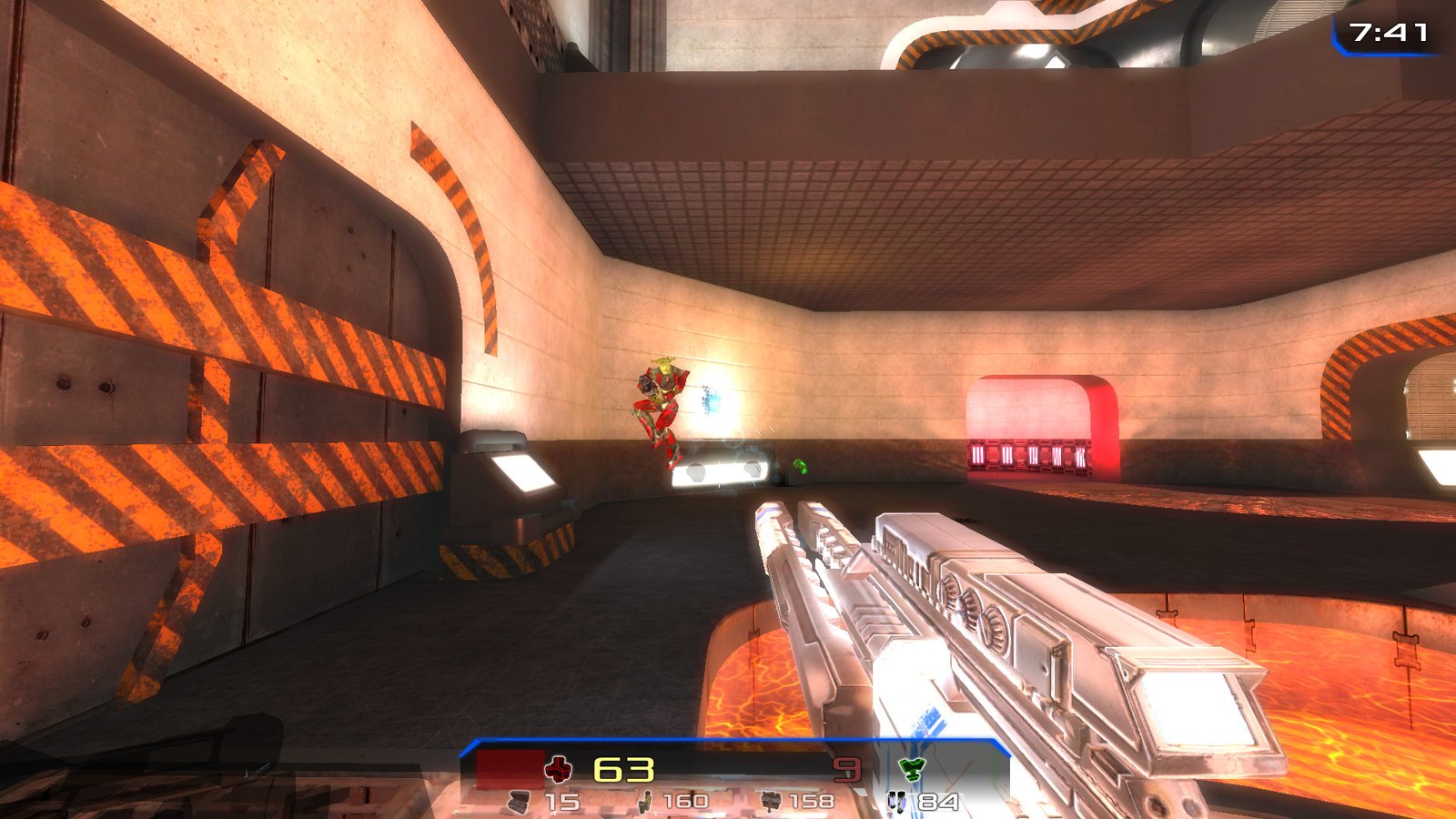
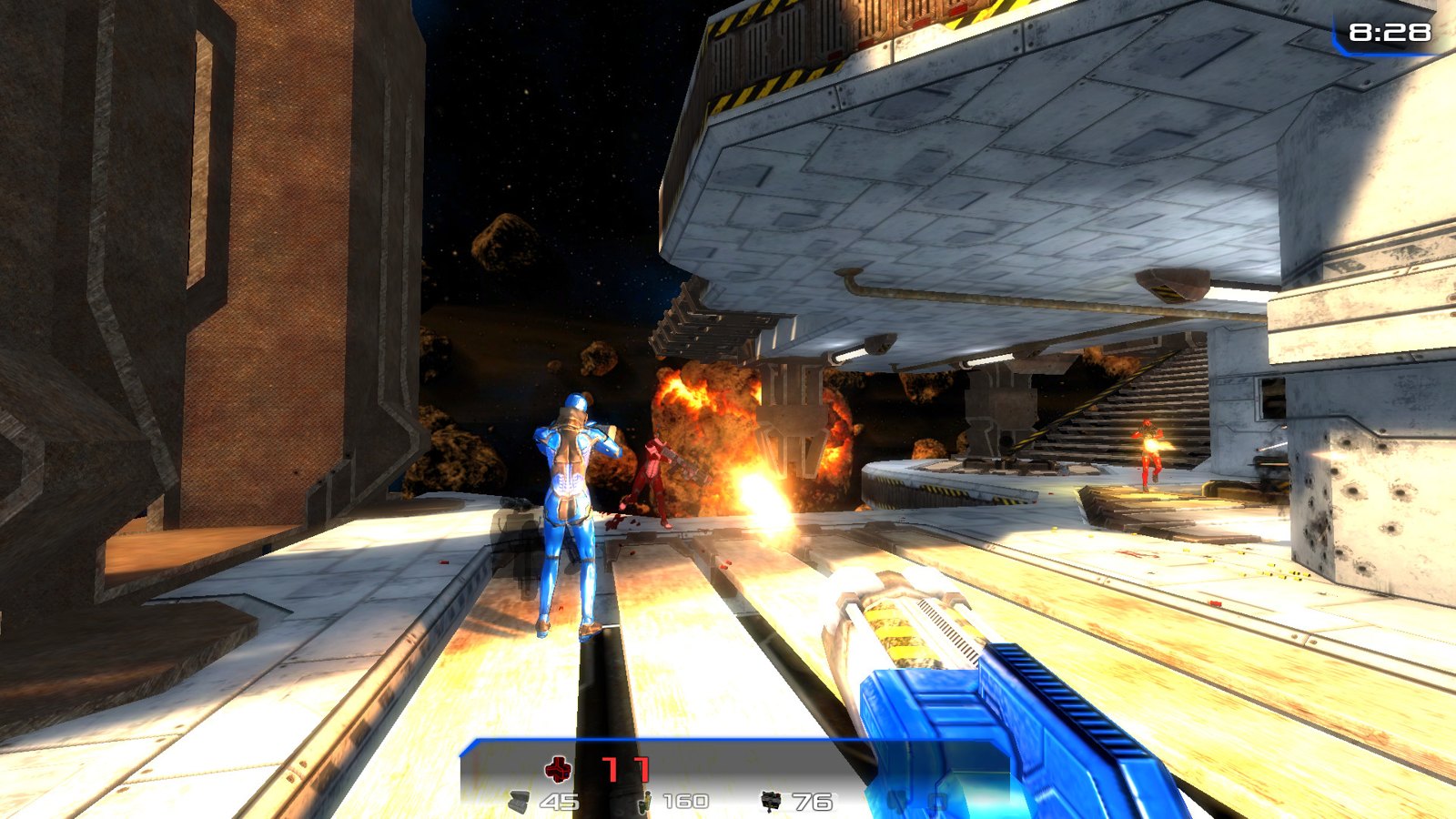
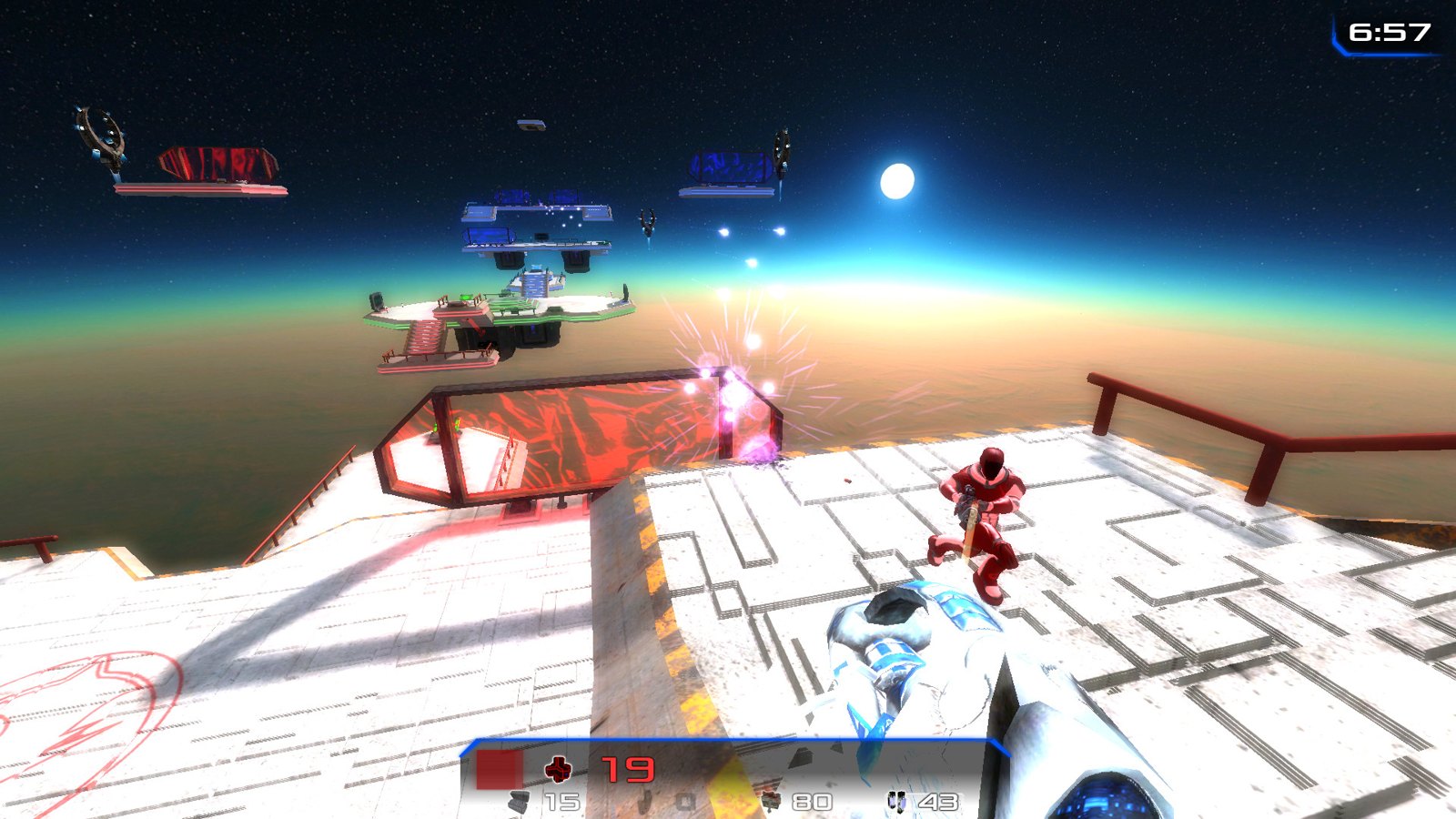
Credits: Based on Xonotic by Team Xonotic. Pictures (desktop version) via Wikimedia Commons, GPL: Xonotic developers, greewrfdsfsf.